ALAN ZISMAN ON
TECHNOLOGY
Last Warning Before Account Suspension
-- Anatomy of an email scam
By Alan Zisman © 2025-11-23
Email phishing scams may seem so 2010s, but I (and probably you) seem to still get my share.
And even though, at least in my case, most are filtered out to my Spam mailbox, not even making a brief appearance in my Inbox.
But the fact that I keep getting them suggests to me that at least some of these messages are getting through to some of you - and that at least some people are falling for them - costing money and possibly more.
In the past week, I've gotten 4 emails, all claiming to be from the Disney+ streaming service. The first warned that my 'Last payment could not be processed'. The next three followed up, with each claiming to be my 'Last warning before account suspension'.
I use Gmail for my email; it does a good (though not entirely perfect) job of filtering out spam and scam email messages and sending them to my Spam mailbox - where I take a look now and again - worth doing because sometimes messages end up there that are, in fact, not spam or scams. (Take a moment and check there now!)
Even if Gmail hadn't filtered out these messages, if I had seen them in my Inbox, I would have known to be suspicious, or at least puzzled, since I don't have a Disney+ account. But millions of people do have an account for that streaming service. So let's see the warnings that let us know how to recognize these emails as scams.
In the past, people were told to look for mis-spellings or grammatical errors - but spammers and scammers have, in many cases, gotten better - whether because English is their first language or because technology has provided them with better tools to correct language errors. So you can't assume that if you don't spot spelling and grammar mistakes a message must be for real.
And it's easy enough to copy corporate logos and colour schemes. So let's take a look at one of these emails. Here's the top of the email, what I see when I open the message:
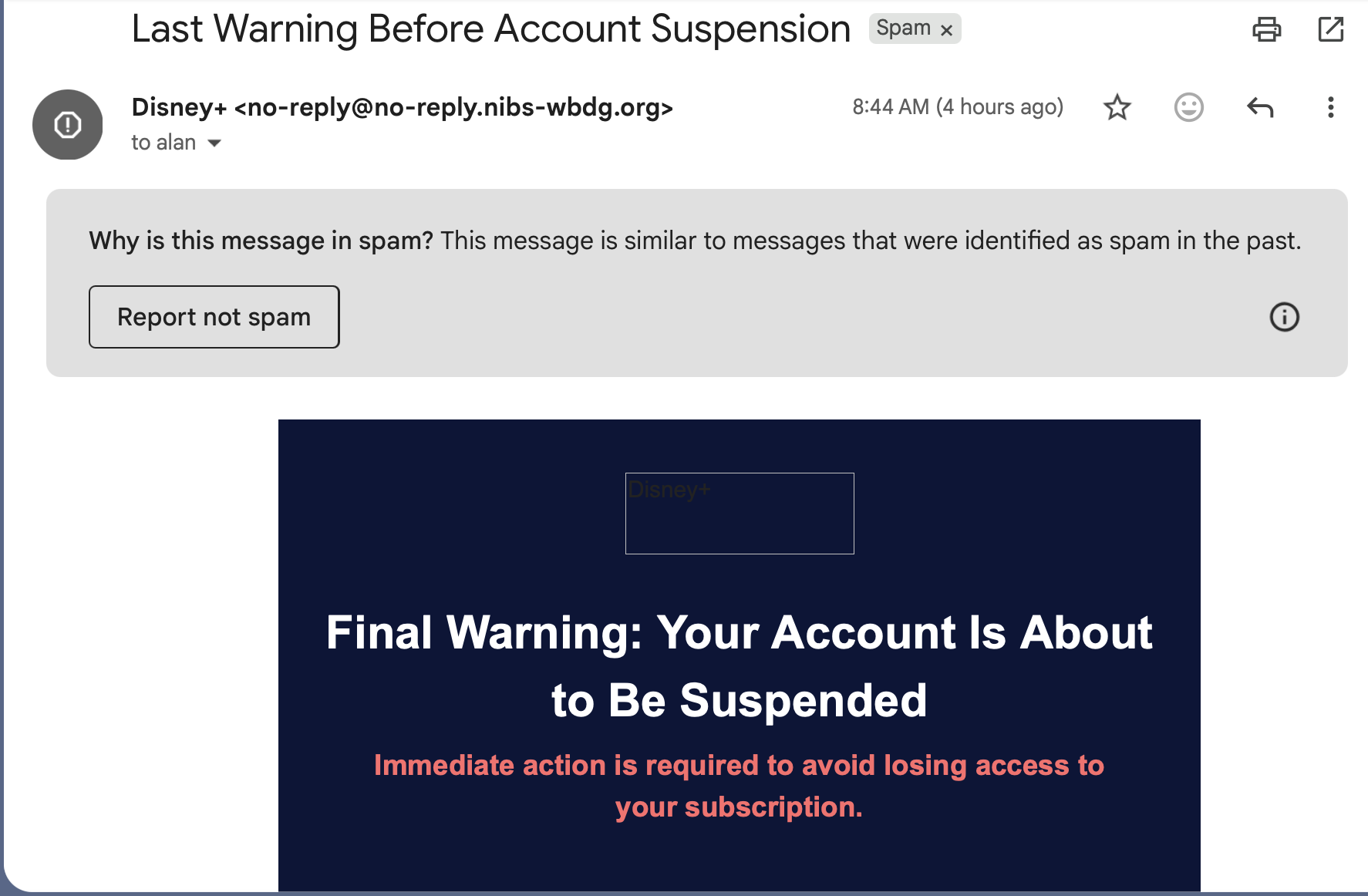
Ignore the grey box near the top, Gmail's reminder that I'm looking at a message in my Spam mailbox. If the message was, instead, in my email Inbox, that wouldn't be there. Instead, look at the address of the sender:

We might imagine that if I was getting an actual message from Disney+ it would be sent from a Disney email account. But no. Some of the other faux-Disney+ messages had a different sender address:

Note though - while Gmail's web interface clearly shows the sender's email address, this isn't always the case. Even though the faux message was filtered into the Junk folder in Apple's Mail app on my Mac, when I look at it in that program, all I see is:

Not so helpful, eh?
If I hover my mouse over the name Disney+ though, the name gets selected and a little down-arrow appears beside it. Click on the down arrow and a menu pops up, with the email address of the sender at the top.
Viewing email on a phone also makes it less obvious. Using the Gmail app on my iPhone, again, I don't see the address at first glance. Tap on the little icon beside the apparent sender's name though, and the address pops up.
A similar thing happens in Apple's Mail app on iPhone (and probably iPad). Again, the address isn't shown - tap on the icon beside the apparent sender's name, then on the (now highlighted) sender's name and the address will be shown.
None of these are immediately obvious. That's too bad - because knowing who sent you a maybe suspicious message is your first line of defense.
Let's look further at that suspicious message. Here's the rest of it:
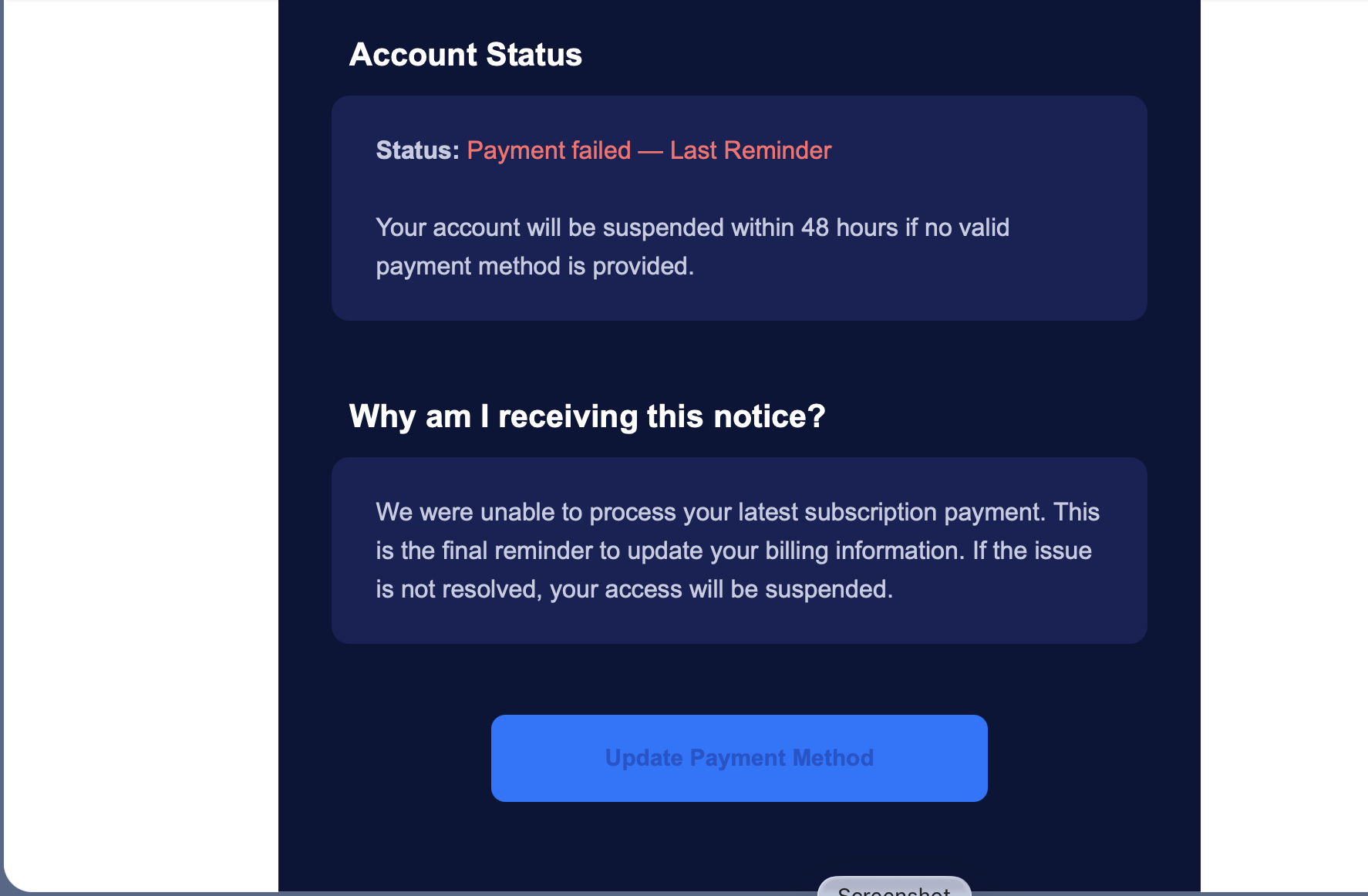
There's a big blue button near the bottom labelled Update Payment Method - if you thought the message was legitimate and that Disney+ perhaps had an expired credit card, you might click (or tap) on it and update your credit card information. (In fact, I got a new credit card a few months ago and got several emails from services who needed to update my credit card info).
But instead of rushing to click or tap on it, on a computer, try this first - hover your mouse or trackpad pointer over the button and look for something to pop-up. When I view my email in a web browser, text pops up in small letters in the lower-left corner. When I view the same message in the Apple Mail app, the same text pops up on top of the button.
In both cases, it shows where the button is going - the same thing will work for any link on a web page or email message - a useful thing since it's easy to create a message or web page with text that says one thing (for instance 'Disney+') but actually goes somewhere else.
In this case, you'll see text indicating that the button is a link going to:
https://cnsb4359.r.us-east-1.awstrack.me/L0/https:%2F%2Fsapo.pt%2F%2Fdlsneyservice.com
(The actually link is much longer)
Notice a couple of things - it's got 'disneyservice.com' as part of the long stream of text - but it's not near the beginning, as you might expect if it was going to a Disney+ address.
Again, it's a sign of a scam.
And again it's harder to make this work on a phone or tablet. In fact, if you can figure out how to do it, let me know.
If you do click/tap on it, you'll be taken to a web page that looks like it's a Disney page, Like a legitimate page,it wants you to prove you're human then enter your log-in information.... eventually you'll be asked for up to date credit card info.
And at that point, they've got'cha.
Key takeaways:
-- being suspicious is good
-- you can check who's actually sending you possibly fraudulent email messages and where they're trying to send you online
-- it's easier to do this if you're looking at your email using a desktop or laptop computer than on a phone or tablet. And that's unfortunate.
Stay safe!
Older blog postings....
Last Warning Before Account Suspension
-- Anatomy of an email scam
By Alan Zisman © 2025-11-23
Email phishing scams may seem so 2010s, but I (and probably you) seem to still get my share.
And even though, at least in my case, most are filtered out to my Spam mailbox, not even making a brief appearance in my Inbox.
But the fact that I keep getting them suggests to me that at least some of these messages are getting through to some of you - and that at least some people are falling for them - costing money and possibly more.
In the past week, I've gotten 4 emails, all claiming to be from the Disney+ streaming service. The first warned that my 'Last payment could not be processed'. The next three followed up, with each claiming to be my 'Last warning before account suspension'.
I use Gmail for my email; it does a good (though not entirely perfect) job of filtering out spam and scam email messages and sending them to my Spam mailbox - where I take a look now and again - worth doing because sometimes messages end up there that are, in fact, not spam or scams. (Take a moment and check there now!)
Even if Gmail hadn't filtered out these messages, if I had seen them in my Inbox, I would have known to be suspicious, or at least puzzled, since I don't have a Disney+ account. But millions of people do have an account for that streaming service. So let's see the warnings that let us know how to recognize these emails as scams.
In the past, people were told to look for mis-spellings or grammatical errors - but spammers and scammers have, in many cases, gotten better - whether because English is their first language or because technology has provided them with better tools to correct language errors. So you can't assume that if you don't spot spelling and grammar mistakes a message must be for real.
And it's easy enough to copy corporate logos and colour schemes. So let's take a look at one of these emails. Here's the top of the email, what I see when I open the message:
Ignore the grey box near the top, Gmail's reminder that I'm looking at a message in my Spam mailbox. If the message was, instead, in my email Inbox, that wouldn't be there. Instead, look at the address of the sender:
We might imagine that if I was getting an actual message from Disney+ it would be sent from a Disney email account. But no. Some of the other faux-Disney+ messages had a different sender address:
Note though - while Gmail's web interface clearly shows the sender's email address, this isn't always the case. Even though the faux message was filtered into the Junk folder in Apple's Mail app on my Mac, when I look at it in that program, all I see is:
Not so helpful, eh?
If I hover my mouse over the name Disney+ though, the name gets selected and a little down-arrow appears beside it. Click on the down arrow and a menu pops up, with the email address of the sender at the top.
Viewing email on a phone also makes it less obvious. Using the Gmail app on my iPhone, again, I don't see the address at first glance. Tap on the little icon beside the apparent sender's name though, and the address pops up.
A similar thing happens in Apple's Mail app on iPhone (and probably iPad). Again, the address isn't shown - tap on the icon beside the apparent sender's name, then on the (now highlighted) sender's name and the address will be shown.
None of these are immediately obvious. That's too bad - because knowing who sent you a maybe suspicious message is your first line of defense.
Let's look further at that suspicious message. Here's the rest of it:
There's a big blue button near the bottom labelled Update Payment Method - if you thought the message was legitimate and that Disney+ perhaps had an expired credit card, you might click (or tap) on it and update your credit card information. (In fact, I got a new credit card a few months ago and got several emails from services who needed to update my credit card info).
But instead of rushing to click or tap on it, on a computer, try this first - hover your mouse or trackpad pointer over the button and look for something to pop-up. When I view my email in a web browser, text pops up in small letters in the lower-left corner. When I view the same message in the Apple Mail app, the same text pops up on top of the button.
In both cases, it shows where the button is going - the same thing will work for any link on a web page or email message - a useful thing since it's easy to create a message or web page with text that says one thing (for instance 'Disney+') but actually goes somewhere else.
In this case, you'll see text indicating that the button is a link going to:
https://cnsb4359.r.us-east-1.awstrack.me/L0/https:%2F%2Fsapo.pt%2F%2Fdlsneyservice.com
(The actually link is much longer)
Notice a couple of things - it's got 'disneyservice.com' as part of the long stream of text - but it's not near the beginning, as you might expect if it was going to a Disney+ address.
Again, it's a sign of a scam.
And again it's harder to make this work on a phone or tablet. In fact, if you can figure out how to do it, let me know.
If you do click/tap on it, you'll be taken to a web page that looks like it's a Disney page, Like a legitimate page,it wants you to prove you're human then enter your log-in information.... eventually you'll be asked for up to date credit card info.
And at that point, they've got'cha.
Key takeaways:
-- being suspicious is good
-- you can check who's actually sending you possibly fraudulent email messages and where they're trying to send you online
-- it's easier to do this if you're looking at your email using a desktop or laptop computer than on a phone or tablet. And that's unfortunate.
Stay safe!
Older blog postings....
| About This Blog... I've been writing about computers, software, Internet and the rest of technology since 1992, including a 17 year (1995-2012) stint as 'High Tech Office' columnist for Business in Vancouver. This blog includes thoughts on technology, society, and anything else that might interest me. Comments, emailed to alan@zisman.ca are welcome - and may be published in whole or part. You can follow me on Facebook for notice of new blog postings. |
 |